DUB COMMANDER
Getting started with DUB COMMANDER
Install, pick your audio device, route Windows audio in one step, check the speakers and you are ready to dub.
- Level
- Beginner
- Time
- 6 min
- Steps
- 5
- Updated
- Nov 16, 2026
Written from: M3 development build (0.1.0), 2026-11-16. The interface may change before release.
DUB COMMANDER is a Windows application (Windows 10 or 11, 64-bit). It plays two kinds of sound through one dub console: what your PC plays (Spotify, YouTube, any app) and what it plays itself (two decks, stems, the sampler, the siren). You need one audio output — your laptop's, a USB audio interface, or a sound card going to the system.

First launch: AUDIO SETUP
The first time, AUDIO SETUP opens by itself. It has two tabs: AUDIO DEVICES and SYSTEM TUNING.
On AUDIO DEVICES, left side:
- Audio device type — ASIO if your interface has an ASIO driver (lowest latency), otherwise Windows Audio.
- Output — where the dub goes: the interface or card that feeds the sound system.
- Input — only if you will use a microphone or a line input (the MC MIC, EXTERNAL INPUT).
- A small buffer (128–256 samples) for playing live; raise it if you hear crackles.
The bottom-left box shows the latency from knob to ear.
Dub what Windows plays: QUICK SETUP
DUB COMMANDER listens to a Windows playback device (the SYSTEM AUDIO SOURCE) and plays the dub on your output. The easiest way to set this up:
- Under QUICK SETUP | WHERE DO YOU LISTEN? pick the device you listen on.
- Press SET UP.
DUB COMMANDER sends its output there and moves Windows' own audio to another device, so Spotify and the browser keep playing as usual while the app captures them. SILENCE ORIGINAL keeps the un-dubbed original from playing at the same time. Everything is put back when you close the app.
Prefer to do it by hand? Choose the SYSTEM AUDIO SOURCE device yourself and press WINDOWS APP ROUTING to send individual apps there.
NotePress LOOP CHECK (on the SYSTEM AUDIO strip) once after changing devices: it plays a quiet
Noteprobe and listens for it, so you know the app is not recording its own output.
Check the speakers
- TEST AUDIO (LEFT, THEN RIGHT) at the bottom of AUDIO SETUP plays a short burst on each side.
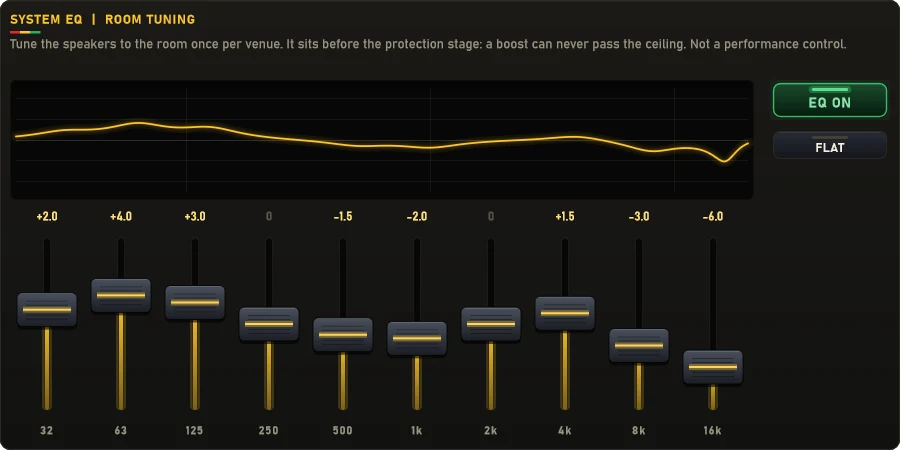
- SYSTEM TUNING has the TEST TONE (1 kHz, 60 Hz for the subs, pink noise for the whole system) and the SYSTEM EQ to tune the speakers to the room — see System tuning and the test tone.
The screen
The interface looks the same on every screen: it is designed once and scaled to your window, so a laptop and a big monitor show the same picture.
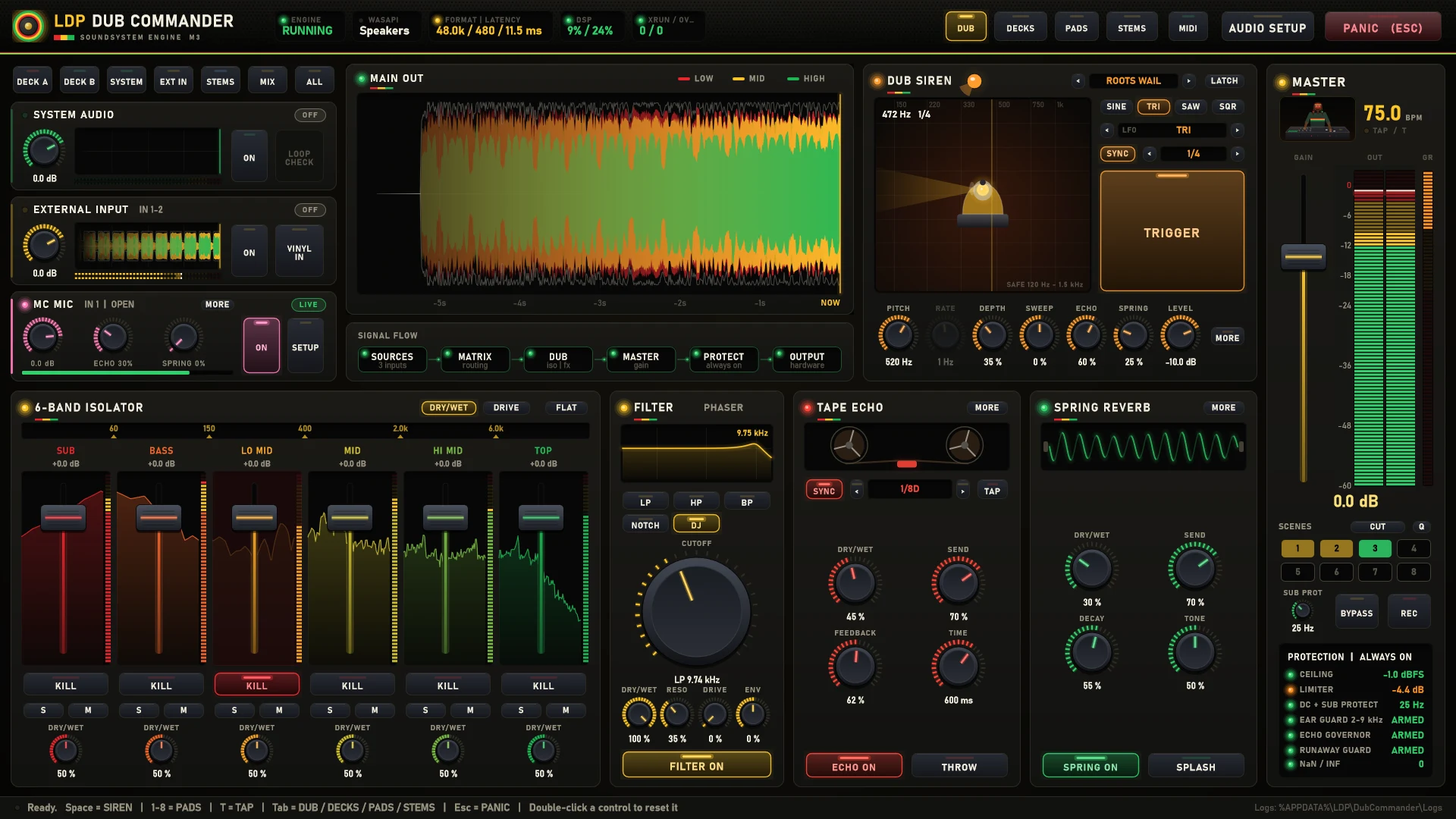
At the top: the engine state, the device, format and latency, the DSP load, the four pages — DUB, DECKS, PADS, STEMS — then MIDI, AUDIO SETUP and PANIC.
- DUB: the sources, the live output, the siren and the dub console.
- DECKS: two DJ decks and their mixer.
- PADS: the 32-pad sampler.
- STEMS: STEMS LIVE, a folder of stems on faders.
The dub console (isolator, filter, tape echo, spring) and MASTER stay on every page.
The one key to remember
Esc = PANIC. It mutes everything the app outputs, at once, from anywhere. Press PANIC again (the button) to release it. The protection stage after the master is always on; see Safe on a big system.
Next: Your first dub in five minutes.